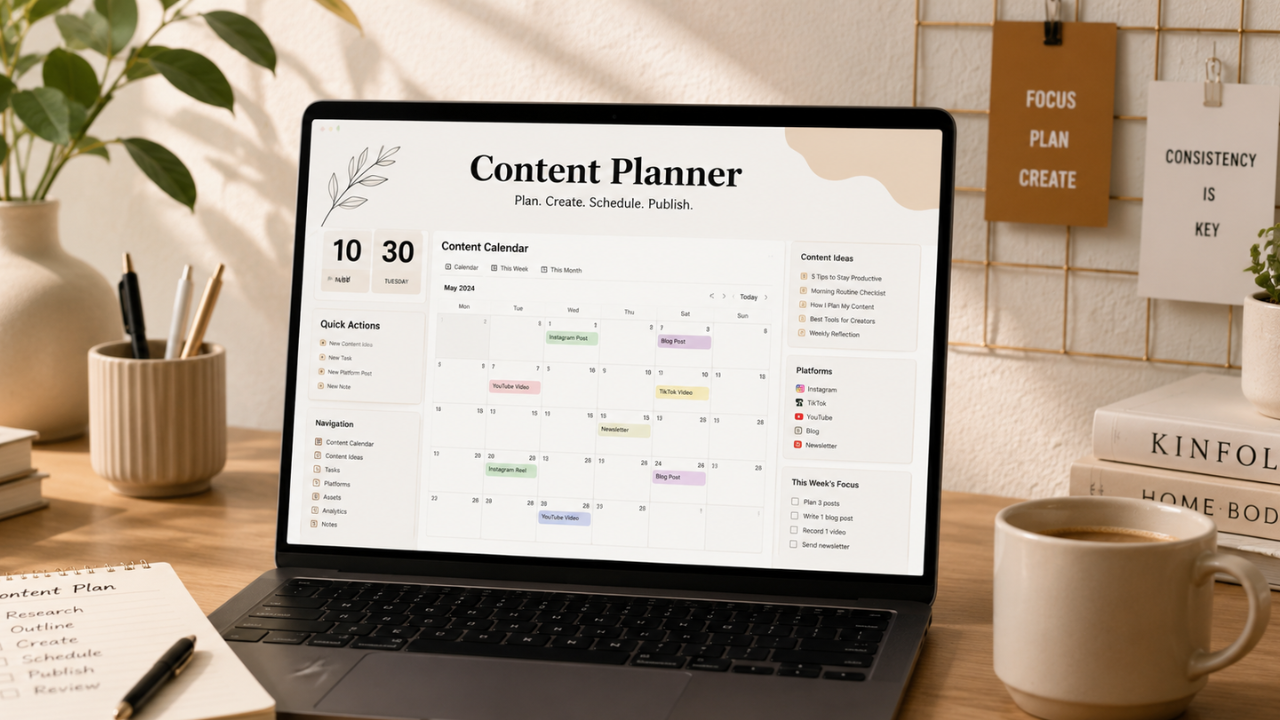
Looking for a free aesthetic Notion content planner template? This guide explains how to use beautifully designed Notion planners to organize your daily content schedule, track ideas, manage publishing workflows, and stay consistent across multiple social media platforms.
What is a Notion Content Planner?
A Notion Content Planner is a customizable digital workspace that helps creators, marketers, freelancers, and businesses organize every stage of content production in one place. Instead of relying on scattered notes or multiple apps, you can manage ideas, writing, editing, publishing, and performance tracking from a single dashboard.
An aesthetic Notion template combines productivity with an attractive layout, making daily planning more enjoyable and easier to maintain. Many creators use these templates to schedule uploads for YouTube, TikTok, Instagram, blogs, LinkedIn, Pinterest, and other platforms.
Whether you create content full-time or as a side project, a structured planner helps you stay organized, reduce missed deadlines, and maintain a consistent publishing routine.
Main Benefits of a Notion Content Planner
- Organize content ideas in one centralized workspace.
- Plan daily, weekly, and monthly publishing schedules.
- Track each project’s progress from idea to publication.
- Improve consistency across multiple platforms.
- Reduce last-minute content creation stress.
- Collaborate efficiently with team members or clients.
- Store research, references, and media assets together.
- Customize layouts to match your personal workflow and branding.
Complete Guide to Using a Notion Content Planner (Step-by-Step)
Step 1: Preparation
Before setting up your planner, identify your content goals and publishing strategy.
Prepare the following information:
- Primary content platforms
- Publishing frequency
- Target audience
- Content categories
- Brand colors or visual identity
- Content workflow stages
- Important campaign dates
- Performance metrics you want to monitor
Having a clear plan before building your workspace makes your planner more effective and easier to maintain.
Step 2: The Main Process
A well-designed Notion Content Planner typically includes several interconnected sections. Below are the essential pages you should include.
1. Dashboard
The dashboard acts as your control center.
Include:
- Today’s tasks
- Upcoming uploads
- Monthly goals
- Recent content
- Quick navigation buttons
A clean dashboard saves time by giving you an instant overview of your workflow.
2. Content Calendar
Use a calendar view to visualize your publishing schedule.
Track:
- Upload dates
- Platform
- Content type
- Campaign
- Priority
- Status
Seeing everything on a calendar helps avoid scheduling conflicts and maintains consistent posting.
3. Content Ideas Database
Capture ideas whenever inspiration strikes.
Useful properties include:
- Title
- Topic
- Keywords
- Platform
- Target audience
- Priority
- Difficulty
- Estimated publishing date
This creates a growing library of future content opportunities.
4. Production Workflow
Manage each stage of content creation with clear statuses.
Example workflow:
- Idea
- Research
- Outline
- Draft
- Editing
- Design
- Review
- Scheduled
- Published
This keeps every project moving smoothly from concept to publication.
5. Asset Library
Store everything related to your content.
Include:
- Images
- Videos
- Logos
- Brand guidelines
- Fonts
- Music
- Templates
- Reference links
Keeping assets in one place reduces time spent searching for files.
6. SEO & Keywords
If you publish blog articles or YouTube videos, create a dedicated keyword database.
Track:
- Main keyword
- Secondary keywords
- Search intent
- Target URL
- Meta title
- Meta description
- Internal links
This helps improve consistency in your SEO workflow.
7. Performance Tracker
Measure how your published content performs.
Useful metrics include:
- Views
- Reach
- Engagement
- Click-through rate
- Watch time
- Shares
- Comments
- Conversions
Reviewing performance regularly helps identify which content resonates most with your audience.
8. Brand Collaboration Tracker
For influencers and freelancers, dedicate a section to partnerships.
Include:
- Brand name
- Campaign
- Deliverables
- Deadlines
- Payment status
- Contract links
- Contact details
This keeps collaborations organized and professional.
Step 3: Result & Evaluation
At the end of each week or month, review your planner to evaluate your progress.
Ask yourself:
- Did I publish consistently?
- Which content performed best?
- Which platforms generated the highest engagement?
- Which topics attracted the most interest?
- What should I improve next month?
Regular reviews help you refine your content strategy and make better planning decisions over time.
Comparison Table / Data Summary
| Planner Feature | Purpose | Best For | Benefit |
|---|---|---|---|
| Dashboard | Daily overview | All creators | Better organization |
| Content Calendar | Schedule planning | Social media managers | Consistent publishing |
| Ideas Database | Store content ideas | Bloggers & creators | Never run out of ideas |
| Workflow Board | Production tracking | Teams & freelancers | Improved efficiency |
| Asset Library | Media management | Designers & marketers | Faster content creation |
| SEO Database | Keyword planning | Bloggers & YouTubers | Better search visibility |
| Performance Tracker | Analytics | Businesses & creators | Smarter strategy decisions |
| Collaboration Tracker | Partnership management | Influencers | Professional campaign management |
Additional Tips for Maximum Results
- Keep your planner simple at first and expand it only as your workflow grows. Overly complex systems are harder to maintain.
- Use color-coded labels for platforms, priorities, and content status to make navigation faster.
- Set recurring reminders for content reviews and publishing deadlines to avoid missed uploads.
- Duplicate successful content planning templates for recurring campaigns instead of rebuilding them from scratch.
Frequently Asked Questions (FAQ)
1. Is Notion free for content planning?
Yes. Notion offers a generous free plan that includes the features most individuals need to create and manage a complete content planner.
2. Can I use one planner for multiple social media platforms?
Absolutely. You can organize content for YouTube, TikTok, Instagram, Facebook, LinkedIn, Pinterest, blogs, and more within a single Notion workspace.
3. Are aesthetic templates better than simple templates?
The functionality is the same, but aesthetic templates often make planning more enjoyable and improve navigation through thoughtful layouts and visual organization.
Conclusion & Call to Action
A free aesthetic Notion Content Planner is more than a scheduling tool—it’s a complete productivity system that helps you organize ideas, manage workflows, publish consistently, and monitor results from one place. With the right template and a disciplined planning routine, you can streamline your content creation process and focus more on producing valuable content.
If this guide helped you, share it with fellow creators and explore our other articles on Notion templates, content planning, social media growth, SEO strategies, and creator productivity to build a more efficient content workflow.