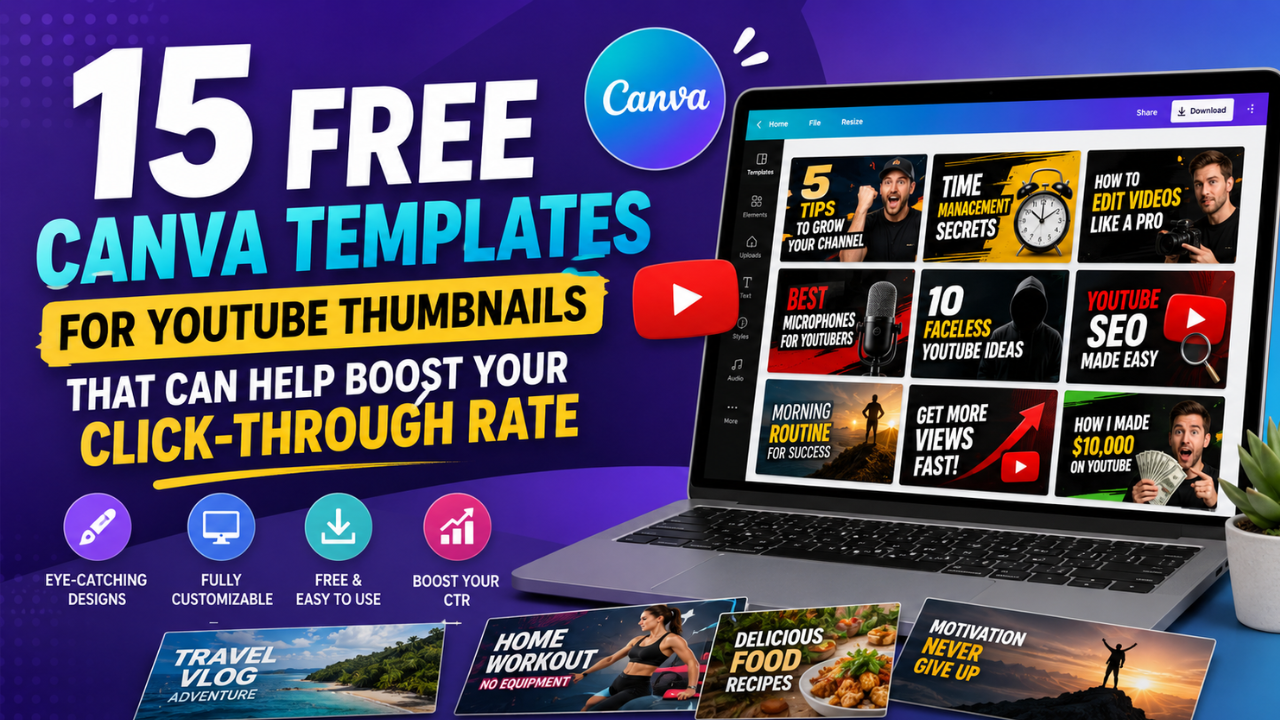
LLooking for free Canva templates to create eye-catching YouTube thumbnails? This guide highlights 15 excellent template styles, explains how to customize them effectively, and shares practical tips to help improve your video’s click-through rate (CTR) with professional-looking designs.
What Are Free Canva Templates for YouTube Thumbnails?
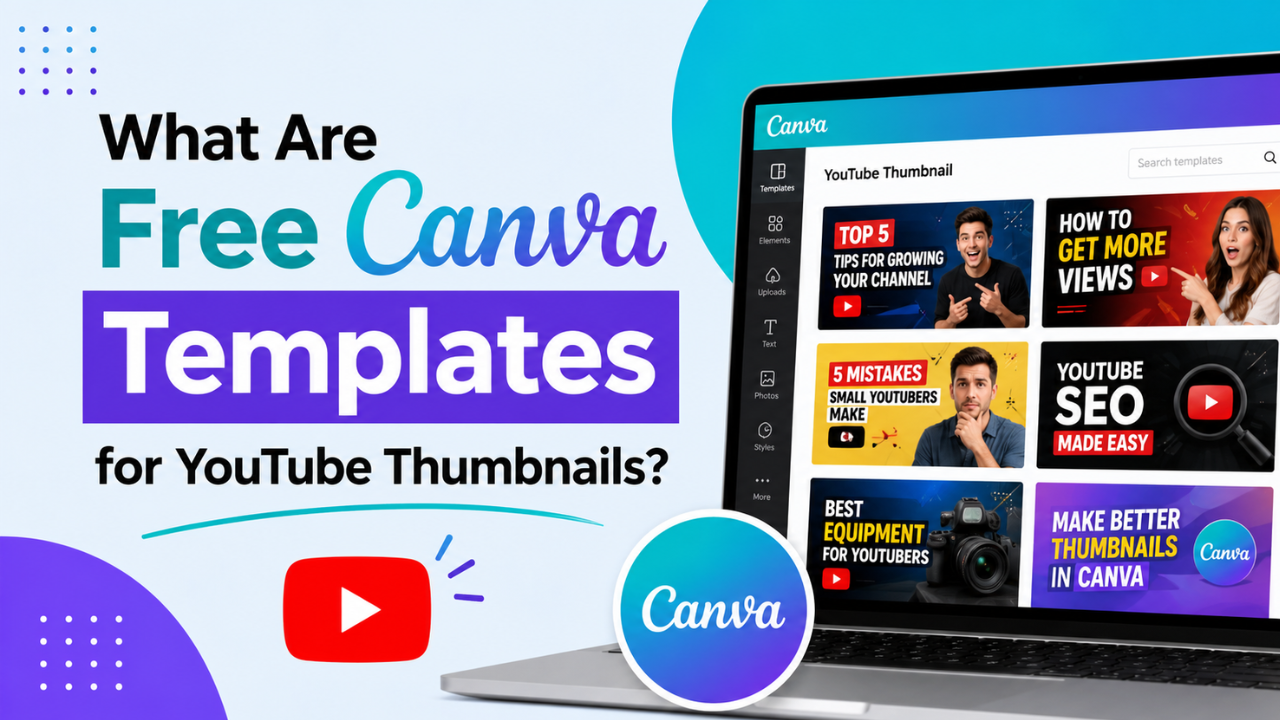
Free Canva templates for YouTube thumbnails are pre-designed layouts that help creators produce visually appealing thumbnails without advanced graphic design skills. Instead of starting from a blank canvas, you can customize colors, fonts, images, and icons to match your brand and video topic.
A well-designed thumbnail plays an important role in attracting viewers. While YouTube’s algorithm considers many factors, an engaging thumbnail combined with a compelling title can encourage more people to click on your content.
Whether you’re a beginner, gaming creator, educator, tech reviewer, or lifestyle vlogger, Canva offers hundreds of free templates that make thumbnail creation faster and easier.
Main Benefits of Free Canva Templates for YouTube Thumbnails
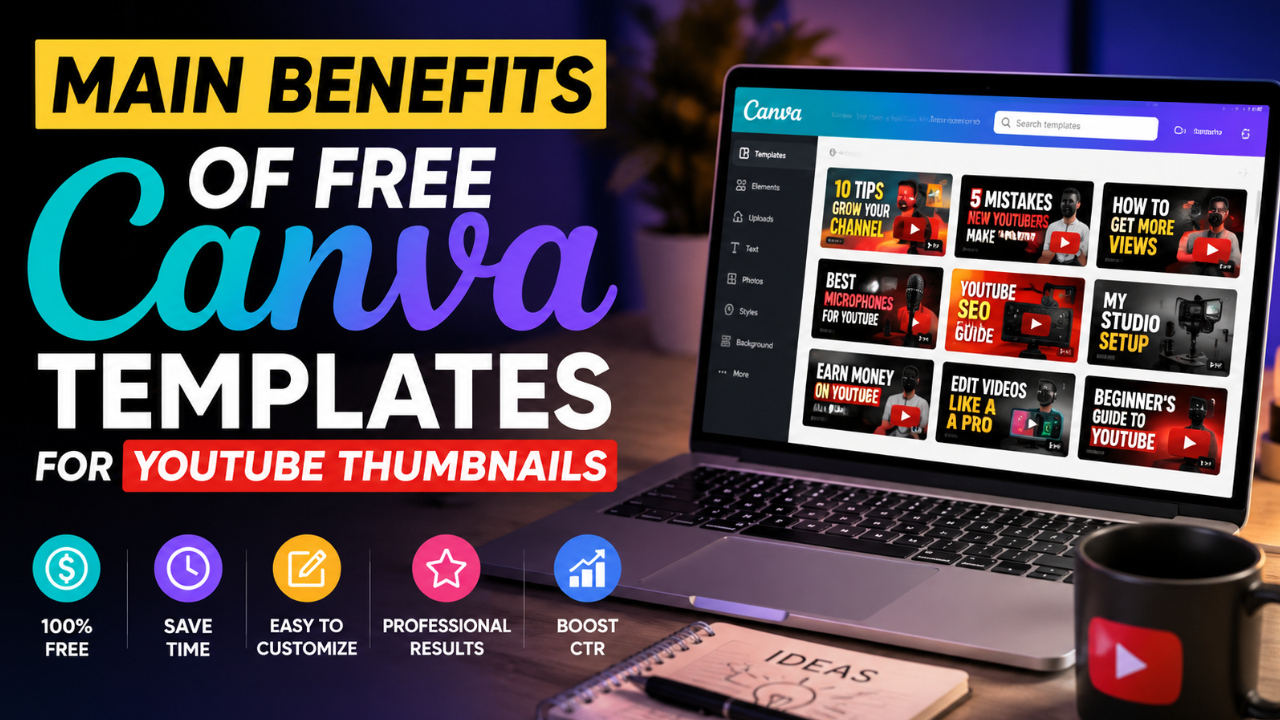
- Save significant design time with ready-made layouts.
- Create professional-looking thumbnails without graphic design experience.
- Maintain consistent branding across your YouTube channel.
- Easily customize colors, typography, and images.
- Improve visual appeal and encourage more clicks.
- Access templates for many content niches.
- Use Canva’s drag-and-drop editor from any device.
- Perfect for creators with little or no design budget.
Complete Guide to Free Canva Templates for YouTube Thumbnails (Step-by-Step)
Step 1: Preparation
Before selecting a template, define your video’s purpose and target audience.
Prepare the following:
- A clear video title
- High-quality subject photo
- Brand colors
- Channel logo
- Two or three complementary fonts
- Supporting icons or illustrations
Also think about what viewers should notice first. The thumbnail should communicate the video’s main idea within seconds.
Step 2: The Main Process
Here are 15 free Canva template styles worth trying:
1. Minimal Tech Style
Ideal for software tutorials, AI tools, coding, and technology reviews.
Best for:
- AI tutorials
- Tech news
- Software reviews
2. Bold Face Reaction
Large facial expressions with bold typography immediately grab attention.
Best for:
- Challenges
- Reactions
- Entertainment
3. Split Before & After
Perfect for transformation videos.
Examples:
- Photo editing
- Room makeover
- Weight loss
- AI image enhancement
4. Product Showcase
Display one main product with clean backgrounds and clear visual hierarchy.
Perfect for:
- Gadget reviews
- Product comparisons
- Unboxing videos
5. Gaming Highlight
Bright colors, dynamic effects, and action-oriented layouts.
Works well for:
- Minecraft
- Roblox
- Valorant
- Fortnite
- Mobile games
6. Educational Presentation
Simple layouts emphasizing readability and credibility.
Great for:
- Online courses
- Business
- Finance
- Marketing
- Programming
7. AI & Future Theme
Modern gradients, futuristic lighting, and technology-inspired elements.
Ideal for:
- ChatGPT
- AI tools
- Automation
- Machine learning
8. News & Update Style
Clean layout with bold headlines and strong contrast.
Suitable for:
- Current events
- Tech updates
- Industry news
9. Lifestyle Vlog
Warm colors and authentic photography create a personal connection.
Perfect for:
- Travel
- Food
- Daily vlogs
- Family content
10. Business Professional
Corporate-style templates featuring clean typography and elegant color palettes.
Recommended for:
- Entrepreneurship
- Freelancing
- Productivity
11. Dark Gaming Neon
Black backgrounds combined with glowing neon accents.
Popular among:
- FPS creators
- Esports channels
- Stream highlights
12. Bright Kids Content
Friendly illustrations and vibrant colors.
Excellent for:
- Educational channels
- Kids learning
- Animation
13. Comparison Style
Present two products, tools, or ideas side by side.
Useful for:
- VS videos
- Reviews
- Buying guides
14. Big Number List
Large numbers immediately communicate list-based content.
Examples:
- Top 10 AI Tools
- 15 Canva Tricks
- 25 Productivity Apps
15. Clean White Professional
Minimalist layouts focusing on clarity instead of visual clutter.
Best suited for:
- Business
- Productivity
- Tutorials
- SaaS demonstrations
Step 3: Result & Evaluation
After publishing your video, don’t stop optimizing.
Monitor these metrics:
- Click-Through Rate (CTR)
- Impressions
- Average View Duration
- Audience Retention
- Returning Viewers
If your CTR is lower than expected, test a different thumbnail while keeping the video content the same. Small changes—such as a stronger focal image, improved contrast, or a shorter text overlay—can make a noticeable difference.
Comparison Table / Data Summary
| Template Style | Best For | Difficulty | CTR Potential |
|---|---|---|---|
| Minimal Tech | AI & software | Easy | High |
| Bold Face Reaction | Entertainment | Easy | Very High |
| Before & After | Transformations | Medium | Very High |
| Product Showcase | Reviews | Easy | High |
| Gaming Highlight | Gaming | Medium | High |
| Educational | Tutorials | Easy | High |
| AI Theme | Technology | Medium | High |
| News Style | Updates | Easy | Medium |
| Lifestyle | Vlogs | Easy | High |
| Business | Professional content | Easy | Medium |
| Dark Gaming | Esports | Medium | High |
| Kids Content | Education | Easy | High |
| Comparison | Review videos | Medium | Very High |
| Big Number List | Listicles | Easy | Very High |
| Clean White | Business & tutorials | Easy | High |
Additional Tips for Maximum Results
- Keep thumbnail text short, ideally three to five words, so it’s easy to read on mobile devices.
- Use one clear focal point instead of filling the design with multiple competing elements.
- Increase contrast between the background and the subject to improve visibility.
- Maintain a consistent visual style across your channel to strengthen brand recognition and build viewer trust.
Frequently Asked Questions (FAQ)
1. Are Canva thumbnail templates really free?
Yes. Canva offers a large collection of free templates, although some premium templates and design elements require a Canva Pro subscription.
2. What thumbnail size should I use for YouTube?
The recommended size is 1280 × 720 pixels with a 16:9 aspect ratio.
3. Do better thumbnails guarantee a higher CTR?
No. A strong thumbnail can encourage more clicks, but actual CTR also depends on factors such as the video title, topic, audience, and how YouTube recommends the video.
Conclusion & Call to Action
Free Canva templates make it easier to create attractive YouTube thumbnails without spending money or mastering graphic design. By choosing the right template, customizing it for your audience, and continuously testing different designs, you can improve your channel’s visual appeal and potentially increase your click-through rate over time.
If you found this guide useful, share it with fellow creators, and explore our other tutorials on YouTube growth, Canva design tips, and AI-powered content creation to keep improving your content strategy.